HostBar
ping, dig, and the browser give different IPs on Mac
None of the three are wrong. They are just not asking the same question the same way.
Knowing which resolution path each tool takes turns a confusing mismatch into a five-minute check.
Three resolvers, not one
- ping, curl, and most ordinary apps call getaddrinfo, which asks mDNSResponder, which reads the hosts file before it asks any DNS server, and applies any scoped resolvers and its own cache.
- dig, nslookup, and host talk to a DNS server directly — either the one in /etc/resolv.conf or one you name on the command line — and never consult the hosts file or scoped resolvers at all.
- Browsers use the system resolver plus their own separate cache, and some can bypass the system entirely with DNS-over-HTTPS.
Reproduce it
ping -c1 example.comdig +short example.comdscacheutil -q host -a name example.comThe third command shows the system's view — the same one ping and most apps use. If it disagrees with dig, the difference is happening between the hosts file, mDNSResponder, and the DNS server, not inside ping itself.
Run all three back to back against the same name; whichever pair disagrees tells you which layer to look at next.
hosts file overrides
If /etc/hosts has a line for example.com pointing at 127.0.0.1, ping sees that address, because it goes through getaddrinfo. dig never reads the hosts file, so it reports whatever the DNS server actually has on record — usually the real public address.
This is expected behavior, not a bug in either tool: a hosts-file override was never meant to affect anything that skips the system resolver.
Split DNS
On a VPN with split DNS, dig run against a server you name explicitly, or against whichever server resolv.conf lists, can return the public address for a name, while ordinary apps get the internal address because a scoped resolver intercepts that domain for them specifically. Neither tool is broken; they are following different resolver paths for the same name.
Naming the VPN's own DNS server explicitly in a dig command sidesteps this entirely and gets you the same answer an ordinary app would see.
Browser caches and DoH
Chrome keeps its own resolver cache, viewable and clearable at chrome://net-internals/#dns. Firefox can be configured to use DNS over HTTPS, which sends lookups straight to an external DoH provider and bypasses the Mac's resolver, hosts file, and scoped resolvers completely — so a working /etc/hosts override can still fail inside that browser alone.
If a page behaves differently in the browser than in curl, check the browser's own DNS settings before assuming the system configuration is at fault.
Get the whole chain at once
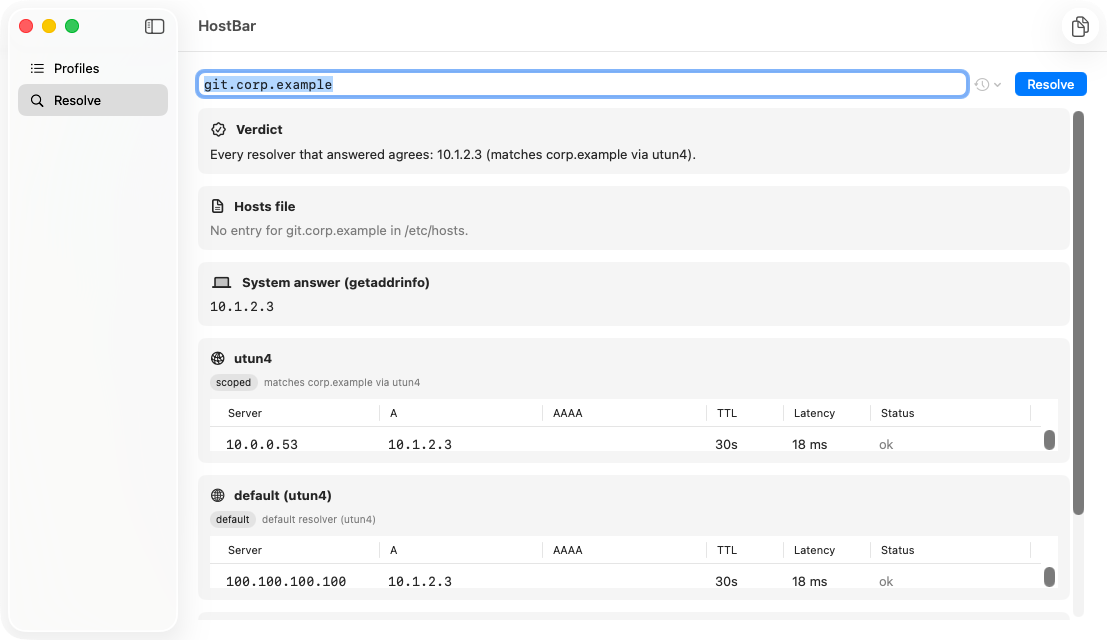
HostBar's resolve panel shows the hosts-file result, the system's answer, and each configured DNS server's answer for a name side by side, with a plain verdict such as "System answers 127.0.0.1 because of HostBar profile staging-local. DNS servers answer 34.120.5.9." — no need to run three separate commands and compare them by hand.